Installing an eSIM is usually quick, but the exact process can vary depending on your phone and how your provider delivers the plan.
In this guide, we’ll show you how to install a travel eSIM on iPhone and Android, explain the main setup methods, and cover what to do after installation so your mobile data works properly abroad.
If you’re still getting familiar with how eSIMs work, our 10 Essential eSIM Questions Answered guide covers the basics first.
Contents
What you need before installing a travel eSIM
Before you learn how to install an eSIM, make sure your phone supports eSIMs and is unlocked for use with another mobile provider. You’ll also need a stable internet connection while the eSIM profile is being downloaded.
Your travel eSIM provider should give you the details needed for installation. Depending on the service, this may be a QR code, a direct installation link, an in-app setup option, or manual activation details.
It’s also worth checking the provider’s activation policy before you start. Installing the eSIM and starting the data plan are not always the same thing.
Some travel eSIMs can be installed before departure without starting their validity, while others may activate during installation or when they first connect to a supported network.
If you haven’t chosen a plan yet, our How To Choose The Right eSIM Plan guide covers the main things to compare before buying.
How to install an eSIM on iPhone
The steps below were tested on an iPhone 17e running iOS 26.6. Menu names may vary slightly depending on your iPhone model, region and iOS version.
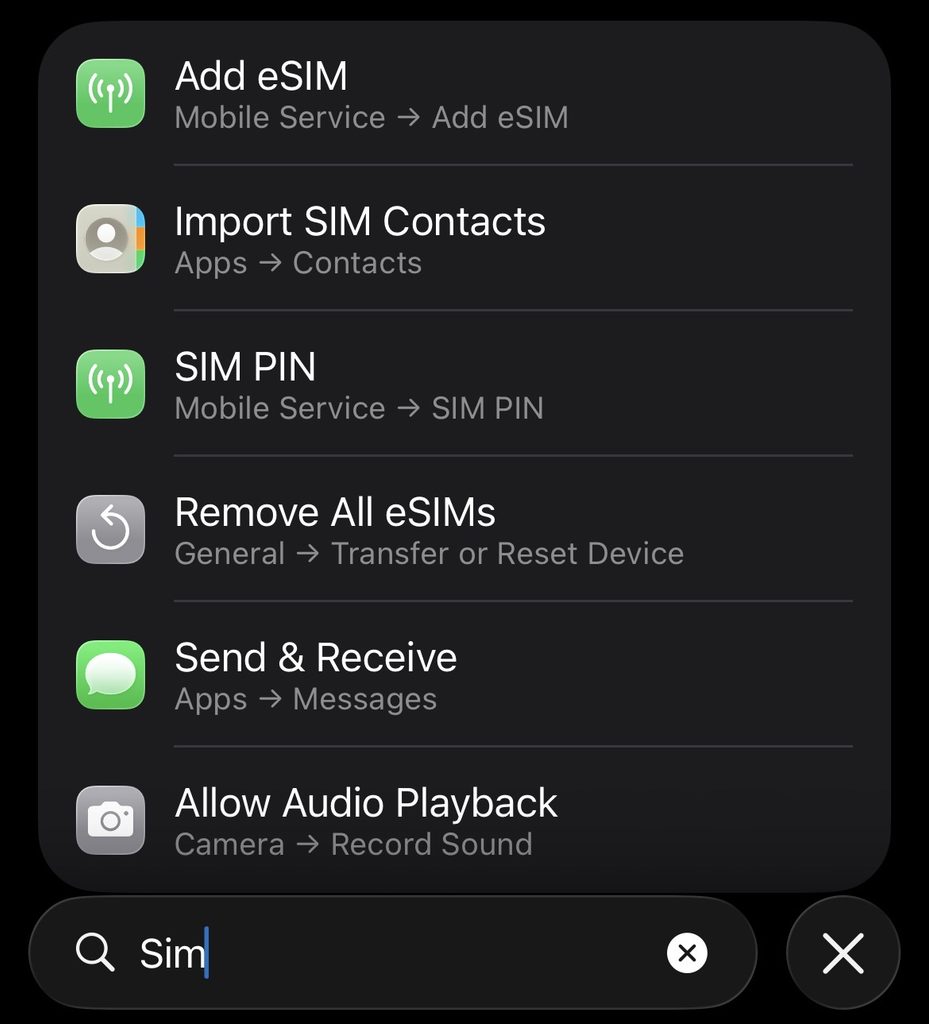
- Open Settings and go to Mobile Service or Cellular.
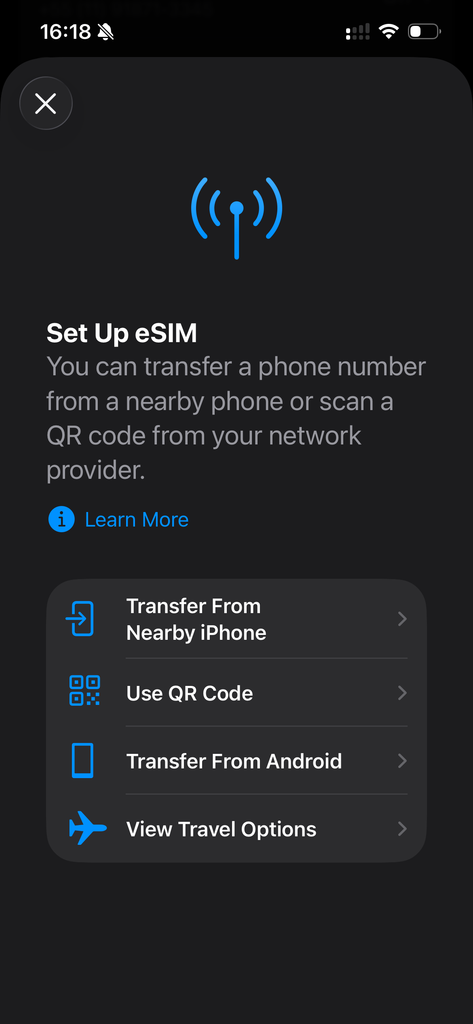
- Tap Add eSIM.
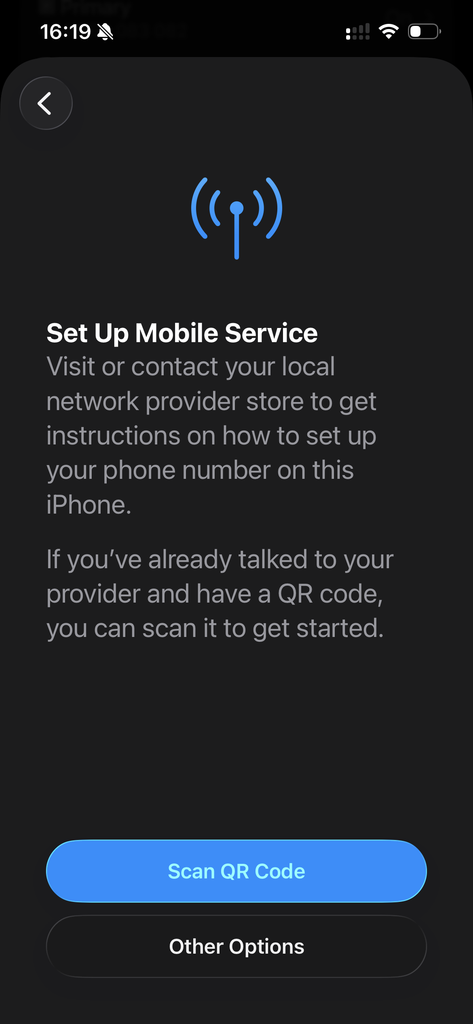
- Choose the installation method provided by your travel eSIM company. For most providers, this will be Use QR Code, although some also offer direct or in-app installation.
- Scan the QR code supplied by your provider. If you received manual activation details instead, choose the option to enter the information manually.
- Follow the prompts on your iPhone and tap Activate eSIM when asked.
- Wait while the eSIM downloads and installs. Once finished, it should appear alongside your other SIMs in your iPhone settings.
How to install an eSIM on Android
The exact steps vary slightly depending on your phone manufacturer and Android version, but the overall process is similar: open your SIM settings, add a new eSIM, then follow the installation method provided by your travel eSIM company.
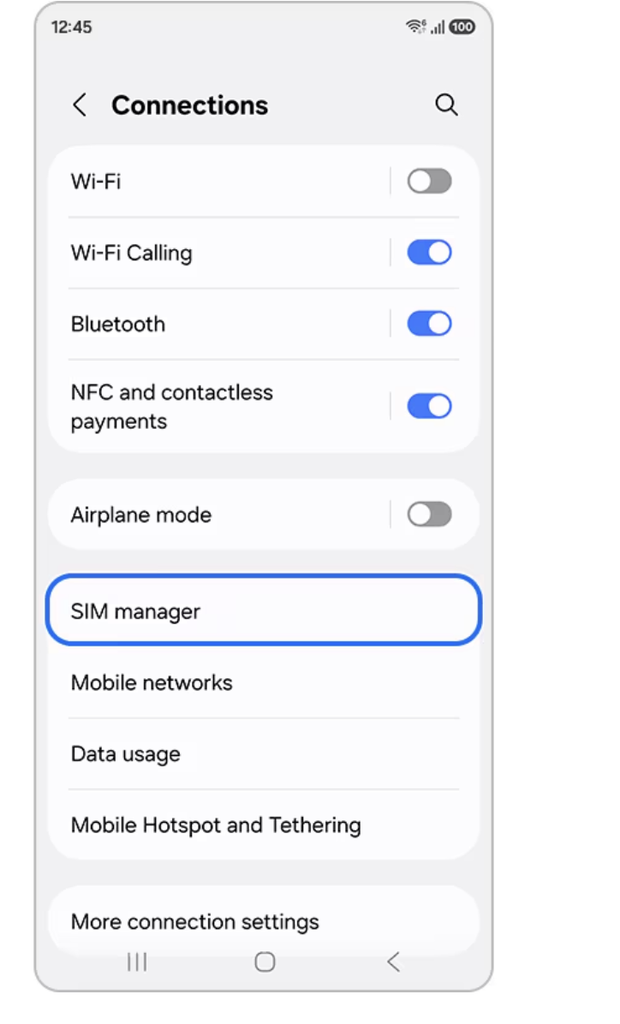
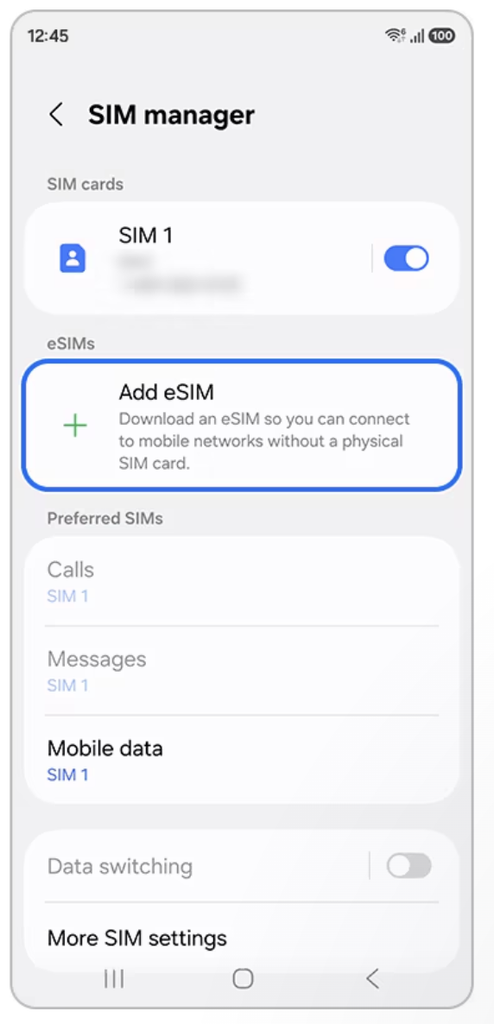
How to install an eSIM on Samsung Galaxy
On Samsung Galaxy phones:
- Open Settings.
- Tap Connections.
- Select SIM manager.
- Tap Add eSIM.
- Choose how you want to install it:
- use Samsung’s supported eSIM setup if available,
- scan the QR code from your provider,
- or enter the activation code manually.
- Follow the on-screen instructions while the eSIM downloads and installs.
How to install an eSIM on Google Pixel
- Open Settings.
- Tap Network & internet.
- Select SIMs.
- Tap Add SIM.
- Choose Set up an eSIM.
- Scan the QR code provided by your travel eSIM company, upload the QR code image if supported, or enter the activation details manually.
- Follow the instructions on screen to finish installation.
Android menu names can vary on phones from other manufacturers, but you’ll usually find the eSIM controls under SIM, Mobile network, or Connections in Settings
How to activate and start using your travel eSIM
Installing the eSIM profile doesn’t always mean your travel data plan has started. Activation rules vary by provider, so check when your plan begins before switching it on.
Once you’re ready to use the eSIM, make sure it is selected as your phone’s mobile data line.
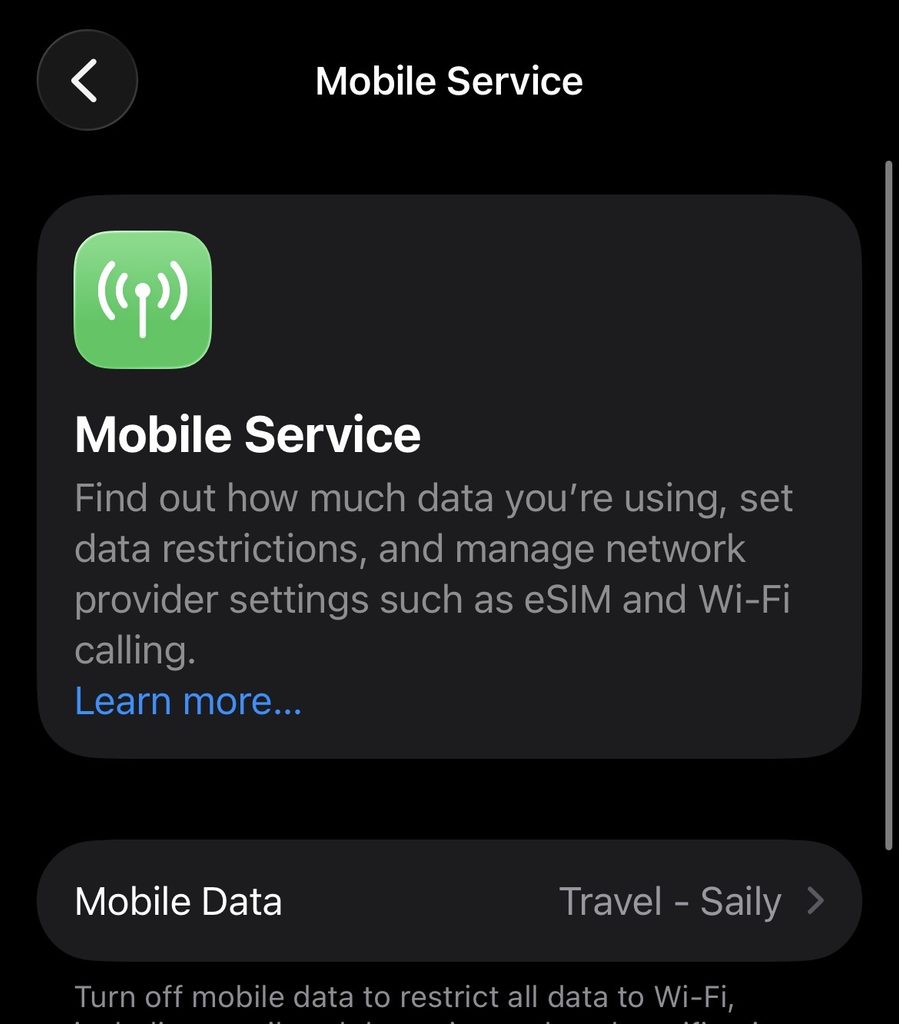
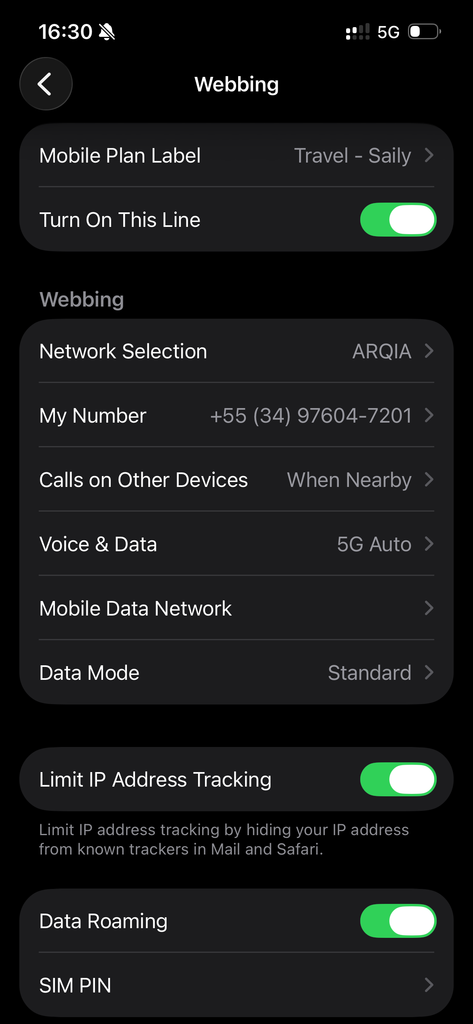
On iPhone:
- Go to Settings > Mobile Service or Cellular.
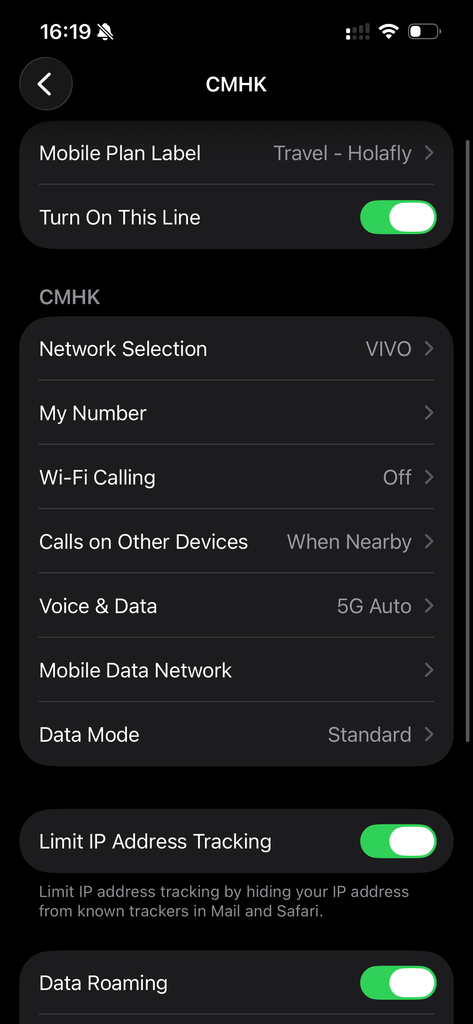
- Tap Mobile Data and select your travel eSIM. Open the travel eSIM itself and make sure Turn On This Line is enabled.
- Turn on Data Roaming if your travel eSIM provider requires it. Many travel eSIMs require Data Roaming to be enabled because they connect through partner networks.
- If you want to avoid your iPhone falling back to your regular SIM for data, keep Allow Mobile Data Switching turned off.
You can usually leave your normal SIM active for calls and texts while using the travel eSIM for mobile data.
Be careful not to enable roaming on your regular SIM unless your normal mobile plan includes it. Our How To Avoid Roaming Charges While Traveling guide covers the main settings to check before you leave.
When should you install a travel eSIM?
In most cases, it’s better to install your travel eSIM before you leave home, while you still have a reliable internet connection and plenty of time to fix any setup problems.
The important thing is to check when your provider starts the plan’s validity. Some travel eSIMs can be installed days before departure and only activate once they connect to a supported network at your destination. Others may start earlier, depending on the provider and plan.
A simple approach is:
- Install the eSIM before your trip if the provider confirms that installation will not start the plan.
- Wait until closer to departure if installation itself triggers activation.
- Switch your mobile data to the travel eSIM when you arrive, unless your provider gives different instructions.
This avoids trying to install an eSIM after landing when you may have limited Wi-Fi or already be dealing with airport logistics.
Common eSIM installation problems
Most eSIM installations are straightforward, but a few issues come up repeatedly.
- The QR code won’t scan: Make sure the code is displayed clearly on another screen or device, increase the screen brightness, and check that you’re using the QR code for the correct eSIM. If scanning still doesn’t work, look for a manual activation option.
- The eSIM installs but there’s no mobile data: Check that the travel eSIM is turned on, selected for mobile data, and that Data Roaming is enabled if your provider requires it.
- The eSIM won’t activate: Confirm that you have an internet connection and that you’re in a destination covered by the plan. Some travel eSIMs won’t fully activate until they connect to a supported local network.
- Your phone is still using your regular SIM for data: Open your mobile-data settings and make sure the travel eSIM is selected. On iPhone, keeping Allow Mobile Data Switching off can help prevent your phone from falling back to your normal SIM.
- The eSIM was installed too early: Check the provider’s activation policy. Installation and plan activation are not always the same thing, but some plans may start their validity earlier than expected.
If you run into a problem that doesn’t match any of these, your provider’s support page should be the next stop. Our Common eSIM Mistakes Travelers Make guide also covers several setup and usage issues that can cause problems after installation.
Leave a Reply